Motor Imagery: Balance Ball Game in Unity
Introduction
This tutorial will show you how to use PhysioLabXR and Unity to set up a balance ball game that you can play by only imagining your left or right hand movements. This is a popular brain computer interface (BCI) paradigm called motor imagery. We will use the PhysioLabXR as a real-time data processing platform where we can deploy an machine learning model to make predictions in real-time, and play the game in Unity.
This is a common use case of pairing PhysioLabXR and Unity as a stimulus presentation platform. Check out the Stream API page for more information about how to use PhysioLabXR to communicate with Unity.
Unity Project
The Unity project is available at: BalancingBallGame script.
Note
The Unity Paradigm is developed using Unity 2021.3.27f1
This Unity paradigm implements a balance ball BCI game. The user can control a rolling ball on a platform using motor imagery. After a quick training session, the user will be able to play the game with imaged movement in real time.
Lab Streaming Layer (LSL) Configuration
There is a single-channel LSL stream from the Unity Paradigm to PhysioLabXR script:
LSL Stream Name: “EventMarker_BallGame”
- Channel[0]: (EventMarker_BallGame)
- Indicates the change of game states (Train/Evaluation) with the following values:
TrainStart = 1, TrainEnd = -1
LeftHandTrialStart = 2, LeftHandTrialEnd = -2
RightHandTrialStart = 3, RightHandTrialEnd = -3
EvalStart = 6, EvalEnd = -6
State Diagram


Train State
PhysioLabXR Scripting
Lab Streaming Layer (LSL) Configuration
There is a single-channel LSL stream from the PhysioLabXR to Unity to transfer the predicted side of hand movements from the PhysioLabXR to Unity.
PhysioLabXR LSL Configuration:
LSL Outlet: “EventMarker_BallGame”
- Channel[0]: (EventMarker_BallGame)
- Indicates the predicted side of hand movements (Left/Right)
Left = 2
Right = 3
The script can be found at: MotorImageryBalanceBall.py
Experiment
This experiment implemented the Balance Ball Brain Computer Interface using RenaLabApp and a customized Unity Paradigm. The similar setup can be extended to other human subject studies that include continuous stream of real time EEG data and customized experiment environment.
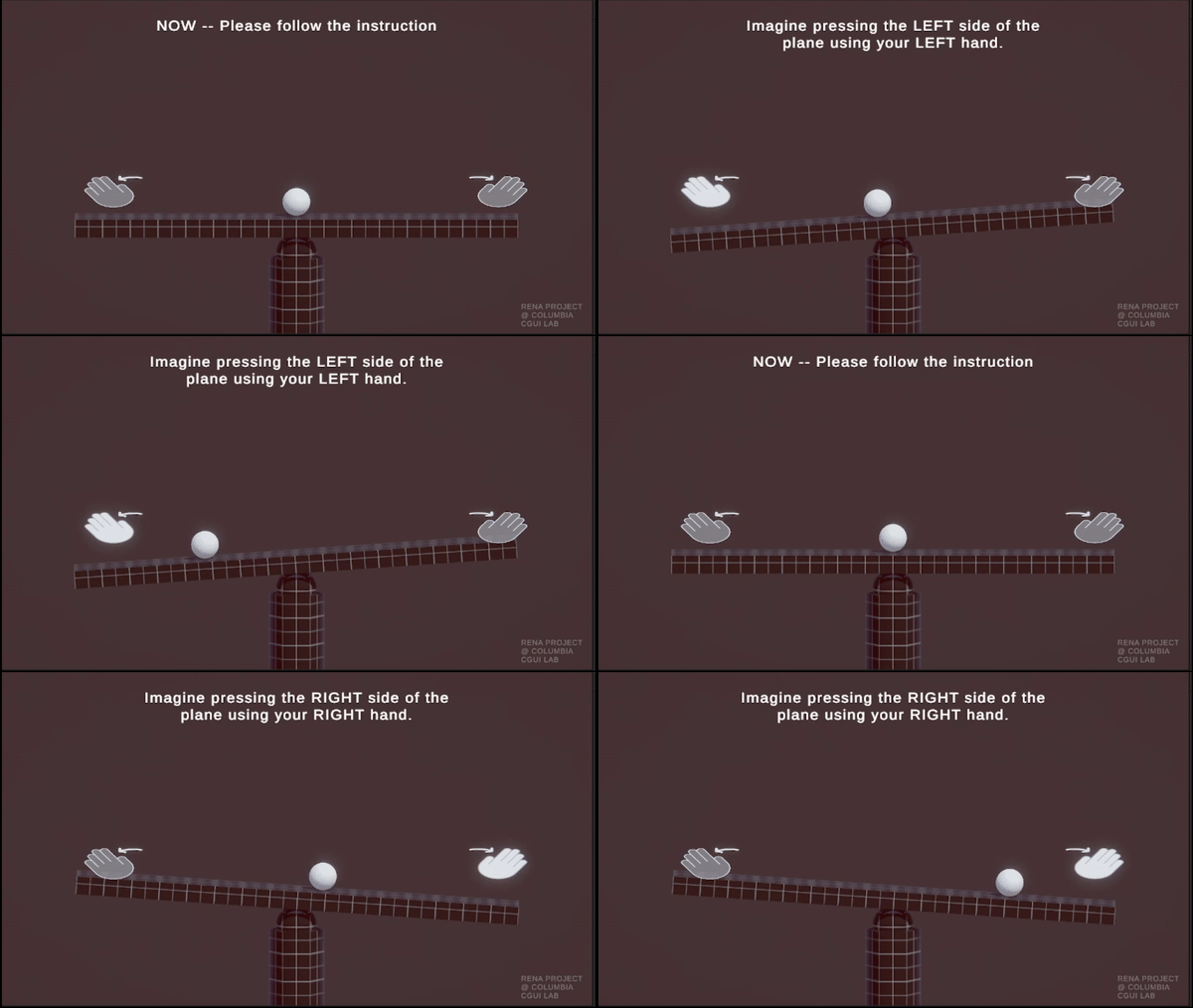
In the training session, the user will be asked to imagine left or right hand movements while looking at an automated ball moving on the screen. After the training session, Unity will communicate with the python script MotorImageryBalanceBall.py to fit a predictive model based on the training data.
The balance ball game has the following features implemented: - a score counter that keeps track of the remaining lives of the ball (3 lives) - a platform that the ball can roll on - a ball that will naturally roll down to the side of the platform that is being pressed. When the ball
reaches the edge of the platform, it will fall off and deduct one life from the player
randomly spawned black collectible cubes that the ball can pick up by rolling over
Requirements
PhysioLabXR: physiolabxr
Unity project download from: PhysioLabXR_Balance_Ball_Demo
- OpenBCI: Cyton-8-Channel
Channel Selection: F3, Fz, F4, C3, Cz, C4, P3, P4.
Experiment Setup
In this experiment, all the required scripts are included in your local directory: physiolabxr/scripting/Examples/PhysioLabXR_BalanceBall_Demo. Or, you can download the scripts from this repository: .
Get the OpenBCI Cyton-8-Channel board and connect it to the computer. Follow this document to set up the OpenBCI Cyton-8-channel: doc. For trouble-shooting, please refer to: OpenBCI Cyton Getting Started Guide. It is very important to complete the FTDI Driver Installation before starting the experiment. The Latency timer should be set to 1 ms (the default value is 16 ms) to reduce the latency.
Check EEG Signal Quality
You can use the OpenBCI GUI to check the EEG signal quality. Same as the previous step, please refer to OpenBCI Cyton Getting Started Guide to use OpenBCI GUI to check the impedance of each channel.
Start the OpenBCI Cyton-8-Channel board from PhysioLabXR Scripting Interface using PhysioLabXROpenBCICyton8ChannelsScript.py
The script can be downloaded from PhysioLabXROpenBCICyton8ChannelsScript.py.
# This is an example script for PhysioLabXR. It is a simple script that reads data from OpenBCI Cyton 8 Channels and sends it to Lab Streaming Layer.
# The output stream name is "OpenBCICyton8Channels"


import time

import brainflow
import pylsl
from brainflow.board_shim import BoardShim, BrainFlowInputParams

from physiolabxr.scripting.RenaScript import RenaScript


class PhysioLabXROpenBCICyton8ChannelsScript(RenaScript):
    def __init__(self, *args, **kwargs):
        """
        Please do not edit this function
        """
        super().__init__(*args, **kwargs)


    # Start will be called once when the run button is hit.
    def init(self):
        # check if the parameters are set

        if "serial_port" not in self.params: # check
            while True:
                print("serial_port is not set. Please set it in the parameters tab (e.g. COM3)")
                time.sleep(1)
        else:
            if type(self.params["serial_port"]) is not str:
                while True:
                    print("serial_port should be a string (e.g. COM3)")
                    time.sleep(1)


        print("serial_port: ", self.params["serial_port"])

        # try init board
        self.brinflow_input_params = BrainFlowInputParams()

        # assign serial port from params to brainflow input params
        self.brinflow_input_params.serial_port = self.params["serial_port"]

        self.brinflow_input_params.ip_port = 0
        self.brinflow_input_params.mac_address = ''
        self.brinflow_input_params.other_info = ''
        self.brinflow_input_params.serial_number = ''
        self.brinflow_input_params.ip_address = ''
        self.brinflow_input_params.ip_protocol = 0
        self.brinflow_input_params.timeout = 0
        self.brinflow_input_params.file = ''

        # set board id to Cyton 8-channel (0)
        self.board_id = 0 # Cyton 8-channel

        try:
            self.board = BoardShim(self.board_id, self.brinflow_input_params)
            self.board.prepare_session()
            self.board.start_stream(45000, '') # 45000 is the default and recommended ring buffer size
            print("OpenBCI Cyton 8 Channels. Sensor Start.")
        except brainflow.board_shim.BrainFlowError:
            while True:
                print('Board is not ready. Start Fild. Please check the serial port and try again.')
                time.sleep(1)


    # loop is called <Run Frequency> times per second
    def loop(self):
        timestamp_channel = self.board.get_timestamp_channel(0)
        eeg_channels = self.board.get_eeg_channels(0)

        data = self.board.get_board_data()

        timestamps = data[timestamp_channel]
        data = data[eeg_channels]

        absolute_time_to_lsl_time_offset = time.time() - pylsl.local_clock()
        timestamps = timestamps - absolute_time_to_lsl_time_offset # remove the offset between lsl clock and absolute time
        self.set_output(stream_name="OpenBCICyton8Channels", data=data, timestamp=timestamps)


    # cleanup is called when the stop button is hit
    def cleanup(self):
        print('Stop OpenBCI Cyton 8 Channels. Sensor Stop.')
Go to the Script Tab and click the Add button to start the script. You can either create a new script and replace the content provided above, or select PhysioLabXROpenBCICyton8ChannelsScript.py located in the physiolabxr/scripting/Examples/PhysioLabXR_P300Speller_Demo directory. After adding the script, you will need to add the output stream in the Output Widget and parameters in the Parameters Widget.
Type the output stream name: OpenBCICyton8Channels in the Output Widget and click the Add button.
Keep the output type as LSL and float32 and change the output channel number in the line edit to 8. (We have 8 EEG channels in this experiment)
Type the parameter name: serial_port in the Parameter Widget and click the Add button.
Change the parameter type to str and type the serial port name in the line edit. (e.g. COM3) You can find this information in your device manager.
Below the text box with the path to your script, change the Run Frequency (times per seconds) to >=30 Hz. (Higher frequency is recommended to reduce the latency, but the execution time for each loop also should be considered. Because this demo requires real-time data streaming, we sacrifice frequency for less latency.) Set the Input Buffer Duration to be 10.
Click the Run button to start the script.
Start Unity
Download the Unity project from the Balance Ball Game repository.
Start the Game by clicking the Play button in the Unity Editor. This will initiate the EventMarker_BallGame on Network. (You can also build the project and run the executable file.)
Go to Stream Tab. Type EventMarker_BallGame in the Add Widget and click the Start Button to start the stream.

Add MotorImageryBalanceBall.py
Go to the Script Tab and click the Add button to add MotorImageryBalanceBall. You can either create a new script and replace with MotorImageryBalanceBall.py we mentioned above, or select MotorImageryBalanceBall.py located in the physiolabxr/scripting/Examples/PhysioLabXR_BalanceBall_Demo directory.

We need to add the Event Marker stream and EEG Stream as an input to the script. Type the stream name: OpenBCICyton8Channels in the Input Widget and click the Add button. Repeat this step for the EventMarker_BallGame stream.
Type the parameter name MotorImageryInference in the Outputs Widget and click the Add button. Keep the output type as LSL and float32 and change the output channel number in the line edit to 1. The predicted result is either Left (2) or Right (3), so we only need one channel to send the result.
Below the text box with the path to your script, change the Run Frequency (times per seconds) to >=15 Hz.
Click the Run button to start the script.
Now you can add the MotorImageryInference stream in the Stream Tab and click the Start Button to start the stream.
Experiment
At this point, we have two scripts running in the Script Tab
MotorImageryBalanceBall.py: This script receives the OpenBCICyton8Channels stream from the OpenBCI Cyton 8 Channels and EventMarker_BallGame stream from the Unity platform. It also sends the MotorImageryInference stream to the Unity platform and Stream Tab just for visualization purpose.
PhysioLabXROpenBCICyton8ChannelsScript.py: This script connect the OpenBCI Cyton 8 Channels via brainflow and send the OpenBCICyton8Channels stream to the local network through LSL.
Three Streams are running in the Stream Tab:
OpenBCICyton8Channels: This stream is sent from MotorImageryBalanceBall.py. Indicate the EEG data from the OpenBCI Cyton 8 Channels.
EventMarker_BallGame: This stream is from the Unity platform. Indicate the event marker for the P300 Speller.
MotorImageryInference: This stream is sent from the MotorImageryBalanceBall.py for visualization purpose. Indicate the predicted hand side of imaginary hand movements in evaluation process.


Set up the Experiment Parameters
Double-click the Scene Training under the path Assets/Scenes/Training.unity
- In the hierarchy tab, click on PlayerPlane GameObject. In its inspector panel, find Training_PlayerPlane component attached to the gameoebjct. Here, you can customize the following parameters in the Unity Editor:
Max Session Num: The number of times to play animation for each side of hand movements.
Break Time: The interval between each animation.

Run the Experiment
Start by double-clicking the Scene GameMenu under the path Assets/Scenes/GameMenu.unity. In this menu page, you can move to the training section by clicking on “TRAIN”.

Once you click TRAIN, the training section is automatically started. Instructions printed on the screen will ask the user to imagine left or right hand movements while looking at an automated ball moving on the screen.
After the training section, the training data will be already fitted to a CSP model. To proceed, click Escape to pull up the menu, and click PLAY to enter the evaluation section.
During the evaluation, the participant can imagine either left or right hand movements to control the tilting of the platform. The side of hand movement with the highest probability will be selected as the prediction result (sent from the MotorImageryInference channel).
Note
At any point of the training process, you can press the Escape key to enter the training section again. This will start the training again.